
Webex Calling reports for your whole organization, not just the admin
Webex Calling keeps a record of every call, but the built-in reporting in Control Hub is meant for administrators. VoIP Detective pulls the same call records into reports anyone can run: managers see their team’s calls, end users look up their own, and administrators search the entire organization with call outcome, rejection, and redirection details. Deploy the virtual machine, authorize it through the Webex App Hub, and reports start filling in as soon as the first records arrive.

Available on the Official Cisco Webex App Hub
Built for Webex Calling
- Pulls call detail records straight from Webex through the official App Hub integration, so every call, user, and workspace is the real record, not an estimate.
- Runs as a virtual machine on your own hypervisor. No agents, no phone changes, and nothing to configure in Webex beyond the one-time authorization.
- Lite is free with no expiration. Pro adds unlimited retention, scheduled reports, and support, and is one license key away.
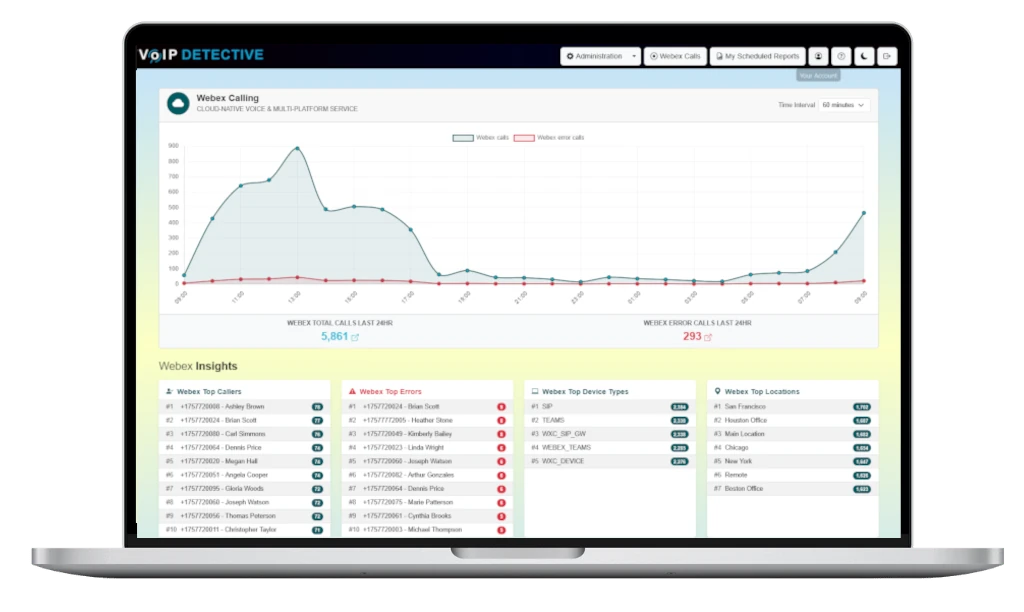
Why teams choose VoIP Detective
- Every call, searchable. Calling and called number, duration, call outcome, rejection reason, and redirection reason, across seven reports that go from a single user to the whole organization.
- Reports that run themselves. Schedule any report to land in a manager’s inbox on the day and time you choose, as PDF, XLSX, or CSV.
- Your data stays with you. Call records are stored on your own server, not with a third party. Phone numbers can be masked for GDPR.
- No per-user pricing. Unlimited administrators, managers, and self-service end users on both Lite and Pro.
- Drill down from anywhere. Every count in every report links to the calls behind it, so a manager’s summary becomes an administrator’s call list in one click.
“VoIP Detective will make you wonder how you ever managed without it. The software is rock solid and the customer service is outstanding.”
“This is perfect! I was able to demo for a customer, and your software was able to do exactly what we pictured. You guys are amazing!”
VoIP Detective – Webex Call Reporting Video Overview
This video will introduce you to our Webex Calling solution. Easy to use and powerful, you’ll be able to report on every aspect of your Webex Calling platform.
Get started with VoIP Detective’s Webex Call Reporting for free
- Download VoIP Detective’s virtual machine using the “Install VoIP Detective Now” link in the upper right corner of this page.
- Deploy the virtual machine, and step through the installer and activate Webex reporting
- Authorize VoIP Detective through the Webex app store ( detailed information here : Configuring Webex Reporting )
VoIP Detective offers both a free forever version, as well as a more robust, PRO version. Both free and PRO allow for unlimited Webex devices, users and calls.
What our customers say
“VoIP Detective is simple to deploy, gives us the reports our managers need, and helps us isolate issues with our telco in a timely manner. For our use case, it’s been perfect so far, and continues to improve.”
“VoIPDetective is an awesome automated tool which is easy to setup and simple to use. It gives power to the admins and management team to get the CDR report in just few clicks with beautiful graphical representations.”
“Works right out of the box, and super easy to customize. VoIP Detective has been an indispensable tool for both our sales managers and telecom admins for years; ad-hoc searches and scheduled reports are clear and usable for end users, and administrators are able to drill down into more technical information about endpoints, gateways, and call quality. The value of this package is simply in another league compared to competing products.”
Pricing Plans
VoIP Detective Webex Reporting is available in a Lite version and a Pro version. Upgrading from the Lite version to Pro is as easy as installing a new license key.
Lite
$Free / mo
- No expiration or time limit
- Includes Webex Calling, CUCM and MS Teams reporting
- No limit to the number of devices
- Stores your most recent 7 days of call data
- No limit to the number of users, managers and administrators you can create
- Free upgrades forever
- Team, Inbound, Outbound, and All Calls reports, plus the Administrator search
- Admins can see error calls and isolate problems before they impact users
Pro
$1499 / year
- Everything that is included in the free version of VoIP Detective
- Integrates with Webex Calling, CUCM, MS Teams, UCCX, and CUBE
- Store millions of call records (no time or retention limits on data)
- Access to additional reports like Endpoint Utilization, and Busy Hour Reports
- Email alerts for emergency calls
- Schedule automated reports to be emailed at the time you choose
- Ticket-based support and all upgrades included
Sample Webex Calling reports produced by VoIP Detective
VoIP Detective offers a number of reports for users of Webex Calling. This page outlines at a high level our available reports. If you have any questions, feel free to send us a message.
Click any report to jump to its details, or scroll down to see all of them.
PopularAdministrator ReportSearch every call in your Webex Calling organization, including outcome and rejection details.
Inbound Call ReportCalls directed to an extension, user, or virtual number.
Outbound Call ReportEvery call placed from an extension or user.
All Calls ReportA simple list of every call to and from a single number.
Busy Hour ReportFind your busiest and quietest hours to plan staffing.
Endpoint Utilization ReportSpot users and devices that barely make calls and reclaim licenses.
Administrator Report
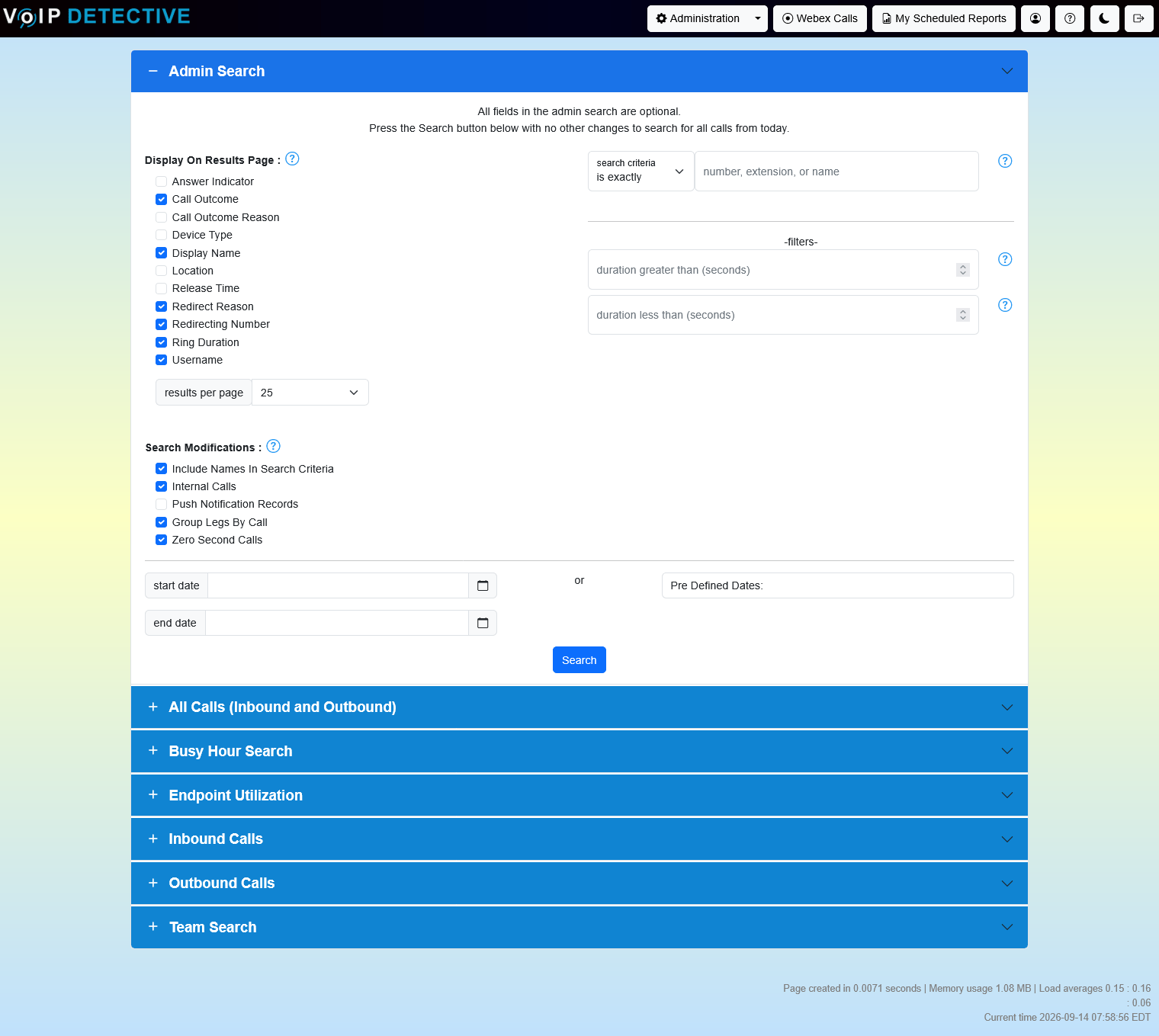
The Administrator Report lets a system administrator search any call across your Webex Calling organization without restriction. Along with the basics like caller, callee, and duration, you can show call outcome, outcome reason, redirect reason and redirecting number, ring duration, device type, and location. Related call legs are grouped under the parent call so transfers and forwards are easy to follow. Results can be viewed in VoIP Detective, exported, or turned into a scheduled report with one click.
Sample output from an admin report:
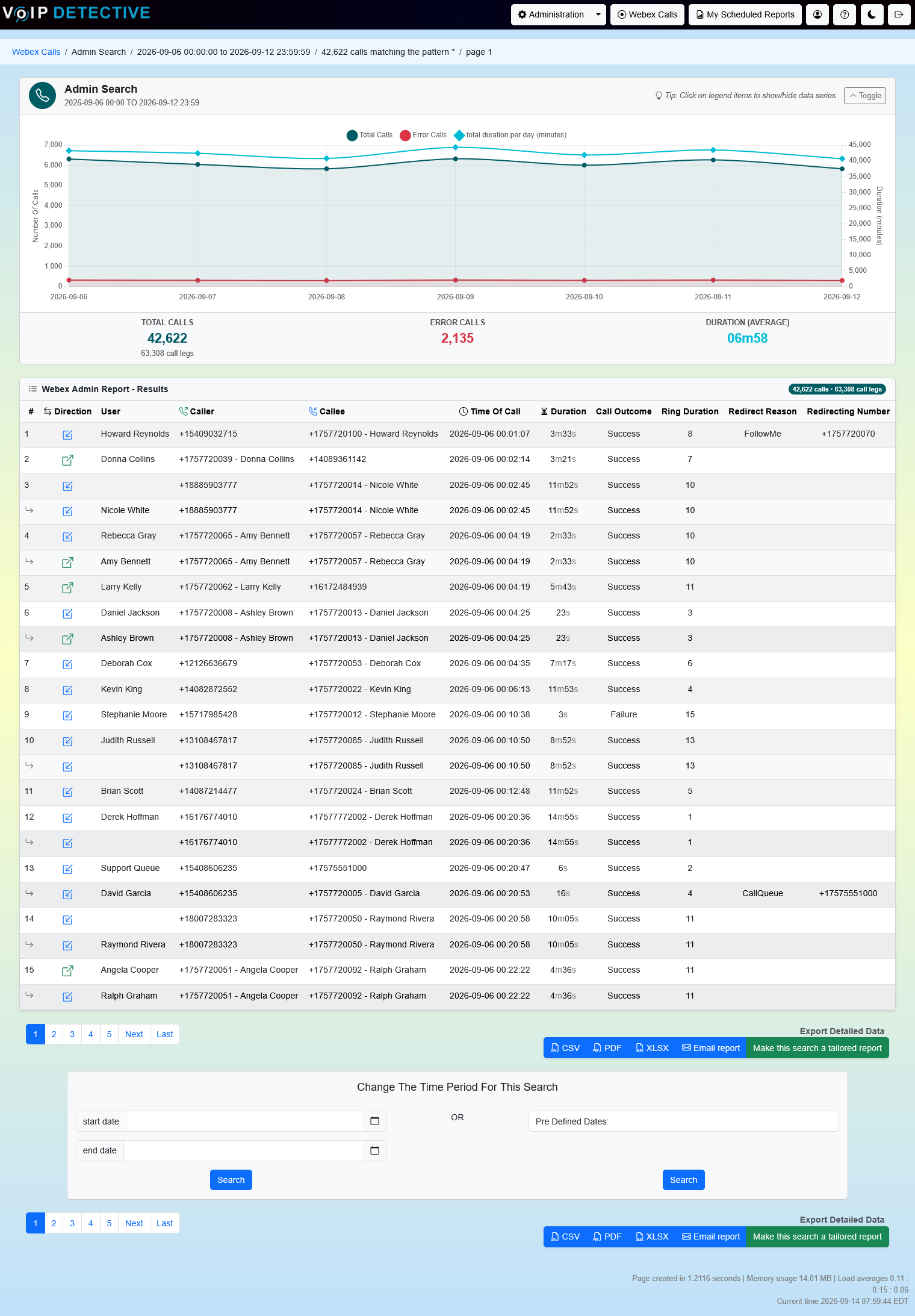
VoIP Detective Free can export this report into CSV, while VoIP Detective Pro can export to CSV, XLSX, and PDF.
All Calls (Inbound and Outbound) Report
The All Calls Report pulls a simple list of every call to and from a single number, inbound and outbound together. It’s available to everyone: end users run it on themselves, managers run it on anyone on their team, and administrators run it on any number. Add a start and end hour to see only business-hours activity, and each call shows whether it was answered, the location, and how long it rang.
Sample output from an “all calls” report:
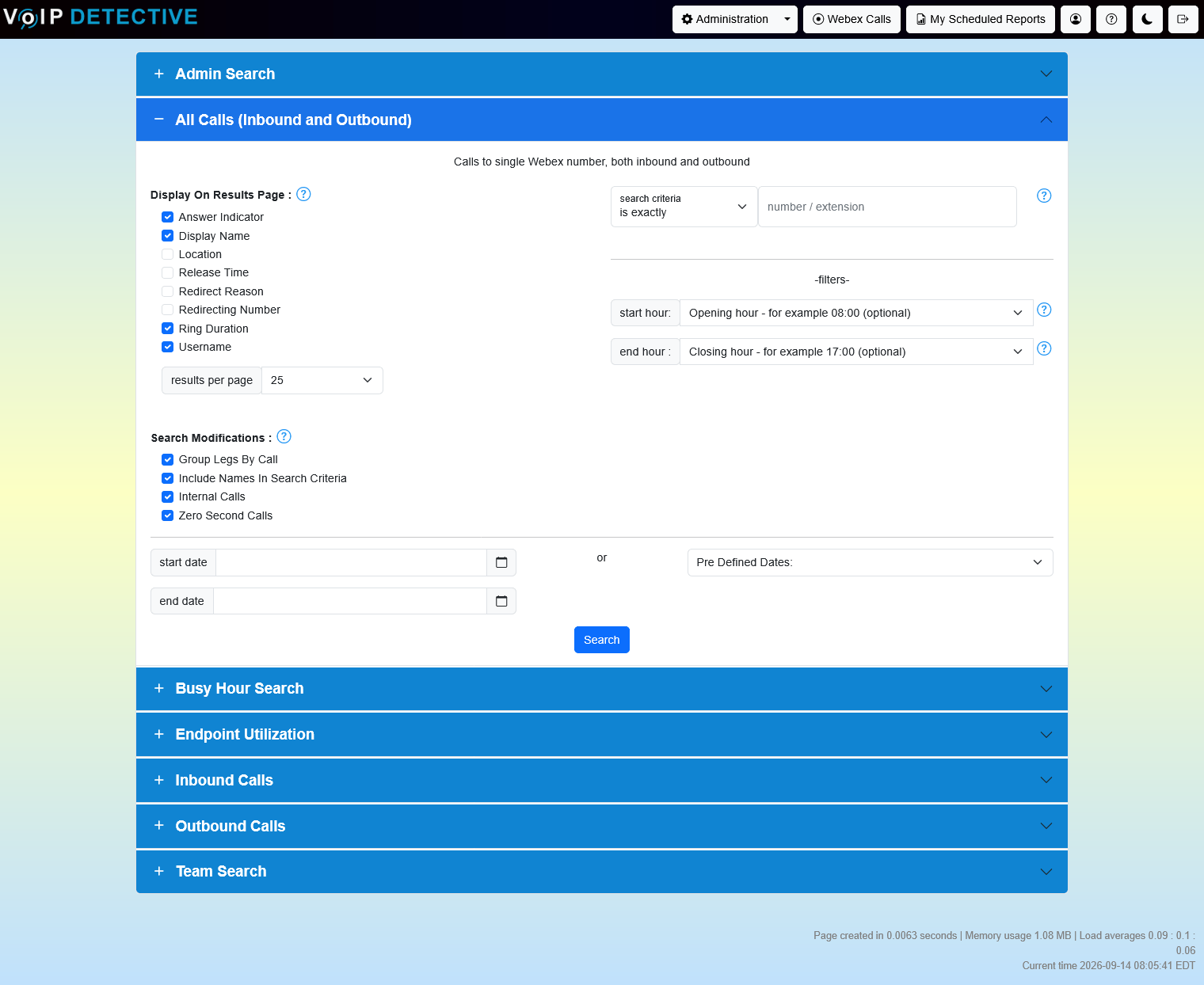
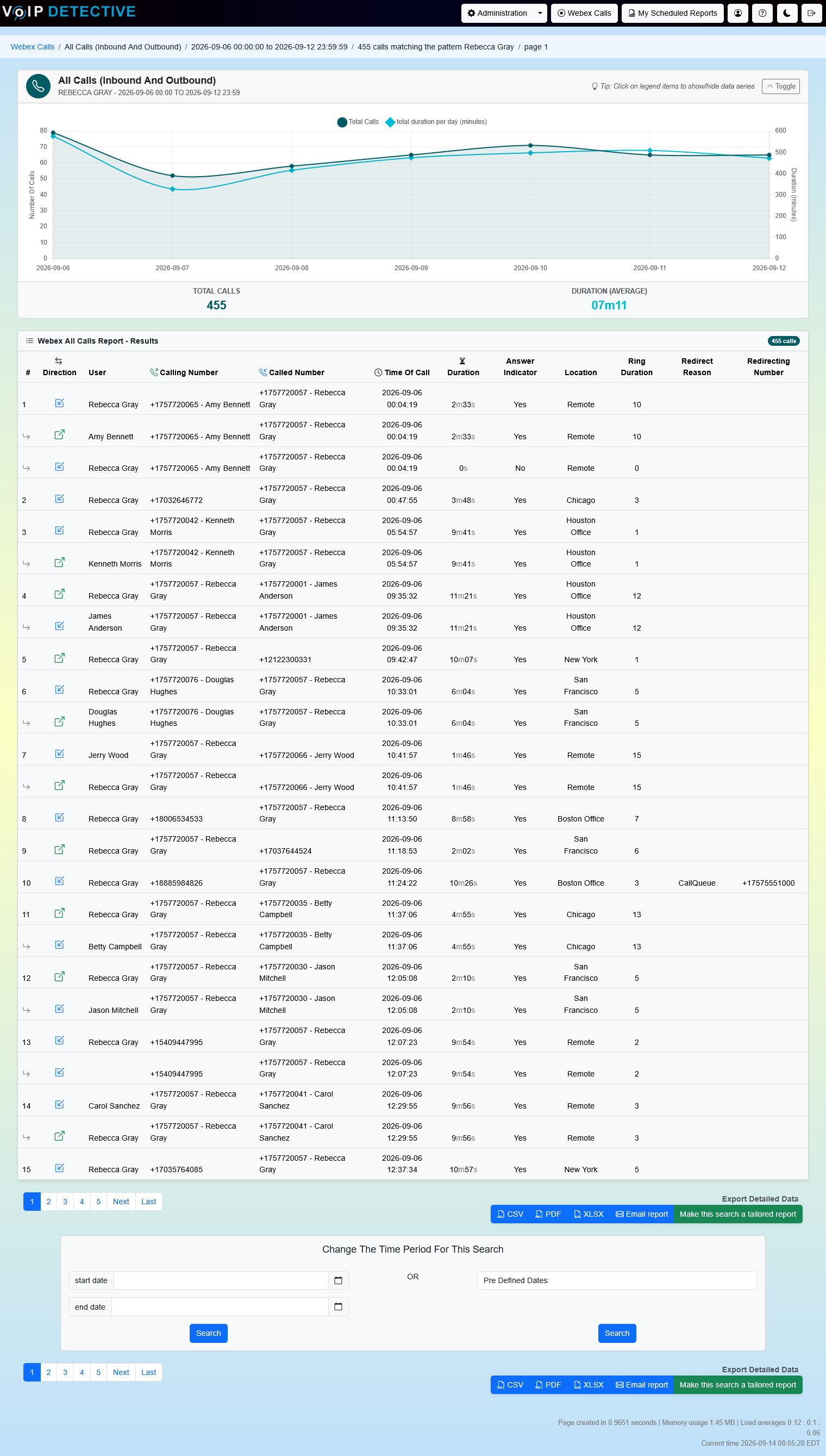
VoIP Detective Free can export this report into CSV, while VoIP Detective Pro can export to CSV, XLSX, and PDF.
Busy Hour Report
The Busy Hour Report analyzes inbound and outbound calls for a specific phone number and extension, displaying call volume in one-hour increments.
This report helps you:
- Identify peak call times throughout the day
- Spot abandoned calls or voicemail trends
- Detect potential overstaffing periods
By understanding when your busiest hours occur, you can optimize staffing and improve customer experience. Each hour in the results table links to the individual calls behind it.
The search interface, as well as sample output from a Busy Hour report:
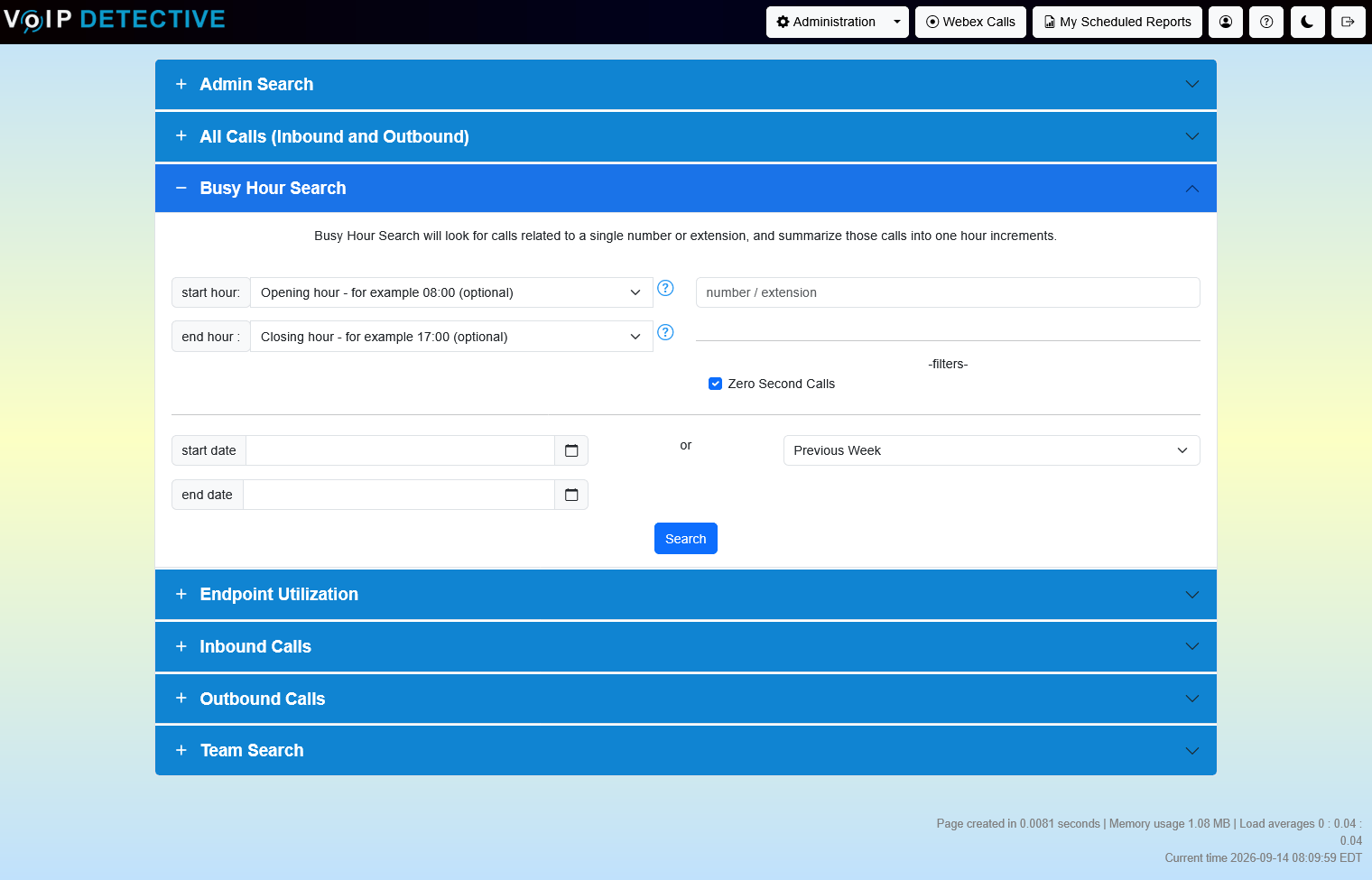
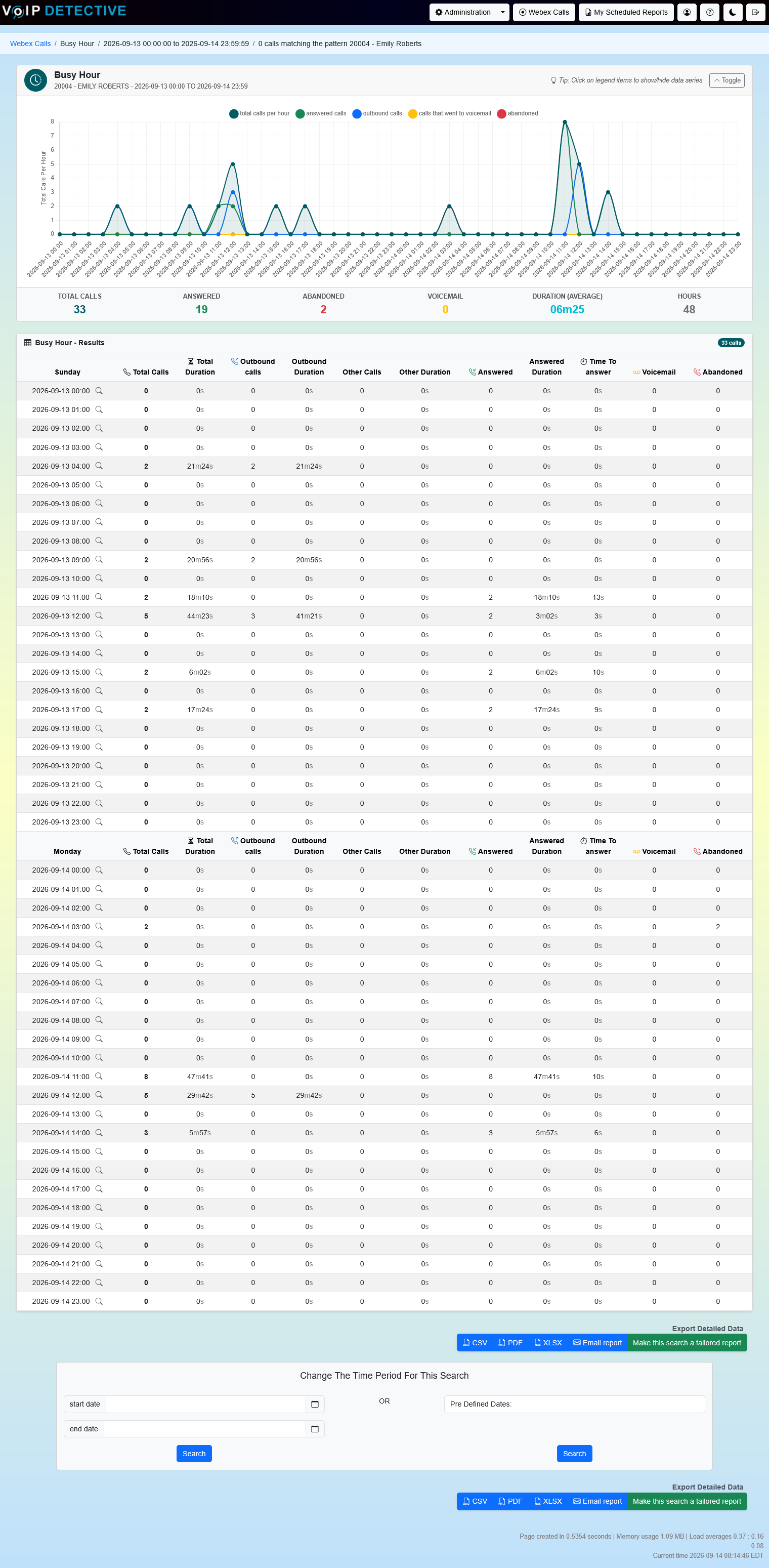
The Busy Hour Report is exclusive to VoIP Detective Pro, and can be exported to CSV, XLSX, and PDF.
Endpoint Utilization Report
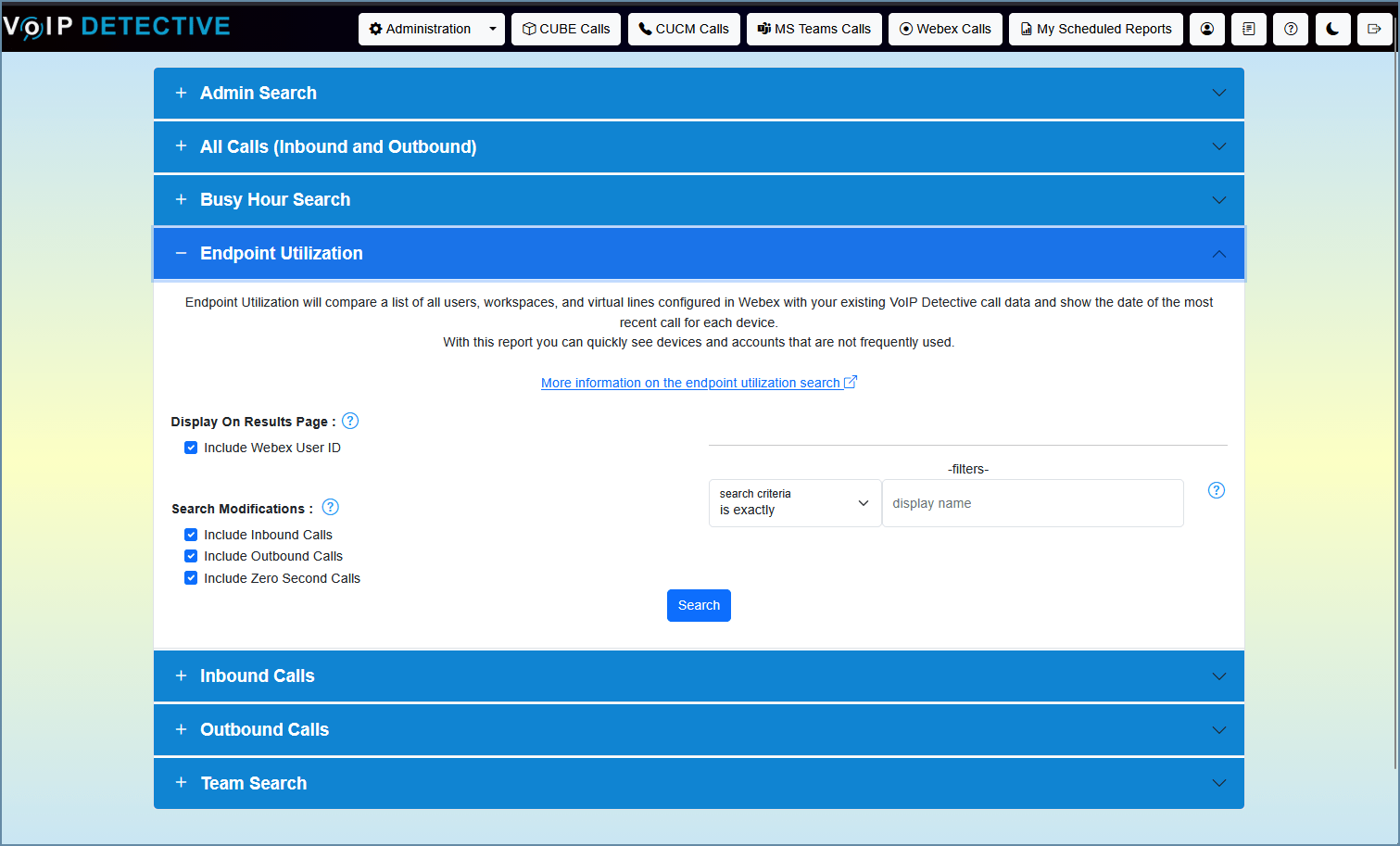
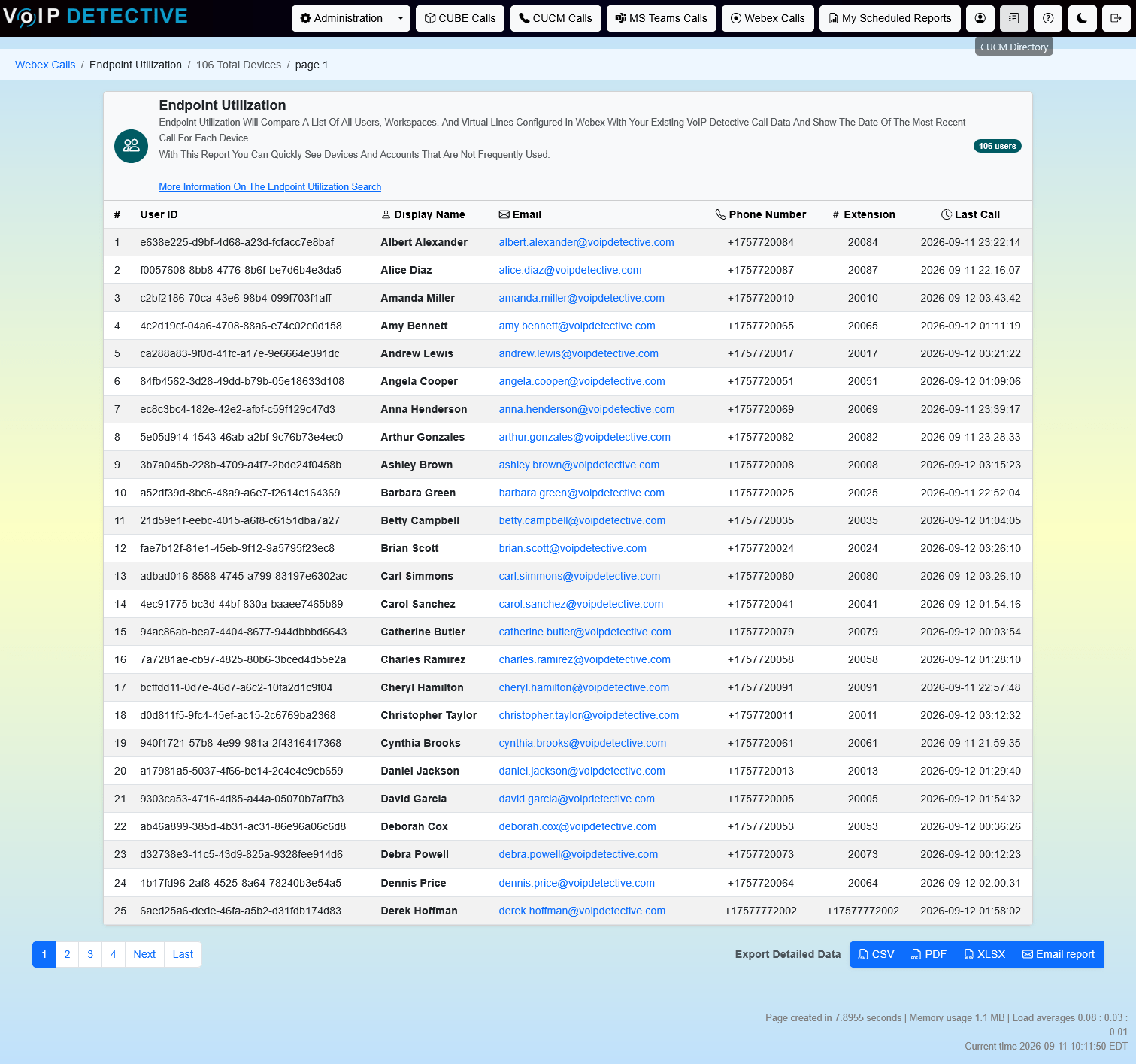
The Endpoint Utilization Report compares every user, workspace, and virtual line configured in Webex against the calls VoIP Detective has stored, then shows the date of the most recent call for each one. It makes it easy to find accounts and devices that are barely used, so you can reclaim licenses you’re paying for.
You can count inbound calls, outbound calls, or both, choose whether zero-second calls count as activity, and filter the list by display name. This report is exclusive to VoIP Detective Pro.
The search interface, as well as sample output from an Endpoint Utilization report:
Inbound Call Report
The Inbound Call Report shows every call directed to a single extension, user, or virtual number. Filter to unanswered calls only to find what was missed, or limit results to your business hours.
The search interface, as well as sample output from an Inbound Call report:


VoIP Detective Free can export this report into CSV, while VoIP Detective Pro can export to CSV, XLSX, and PDF.
Outbound Call Report
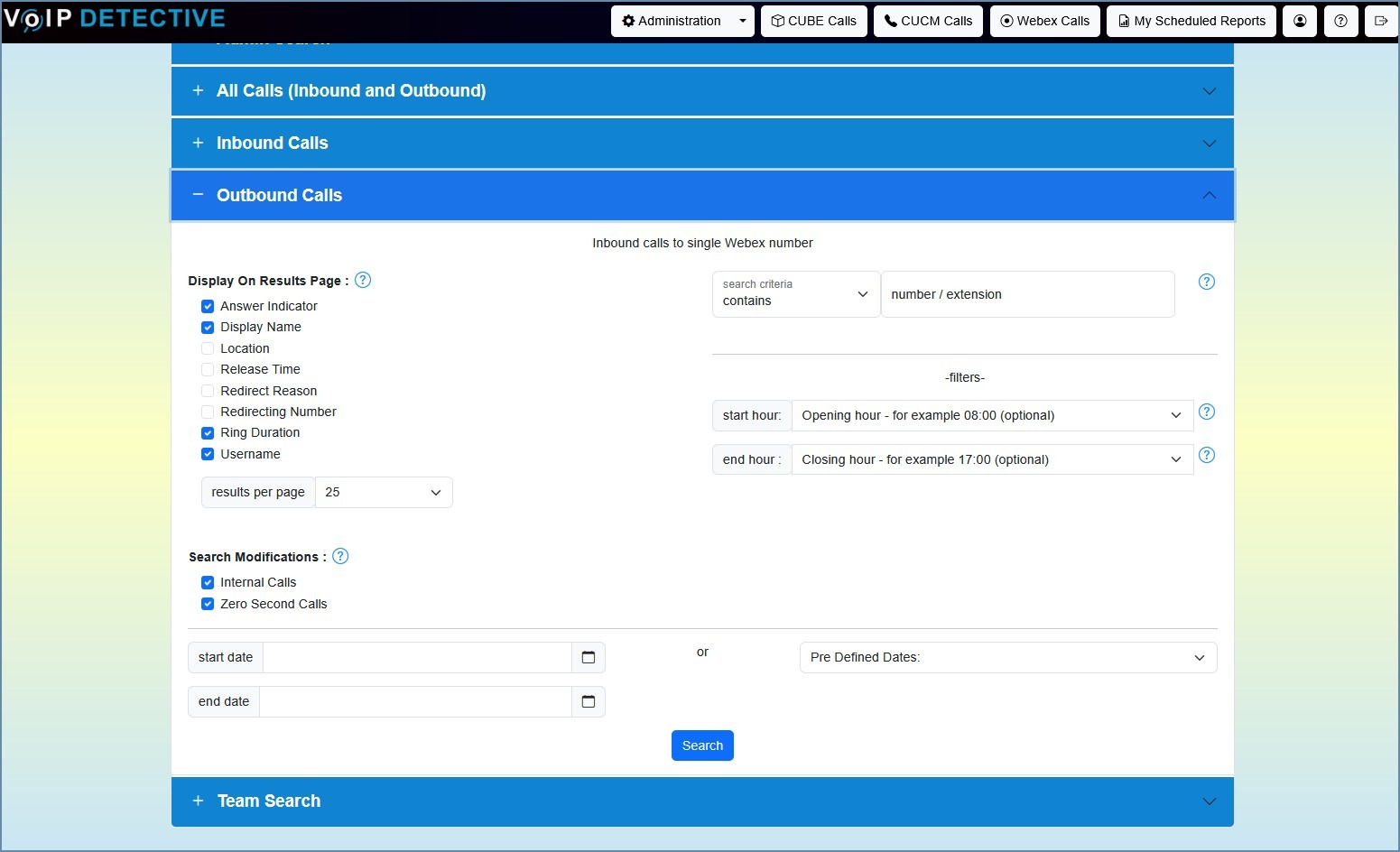
Another straightforward report, the Outbound Call Report is designed to show calls from a particular extension
Sample output from an “outbound call” report:
-
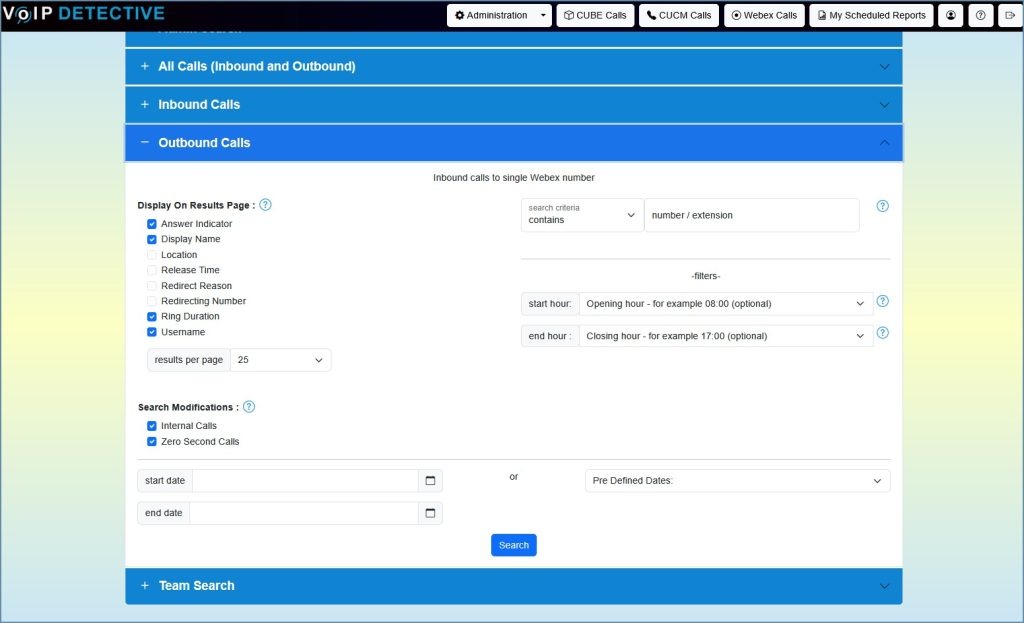
- Our powerful interface lets you find the information that you need quickly. No need for end user training.
-
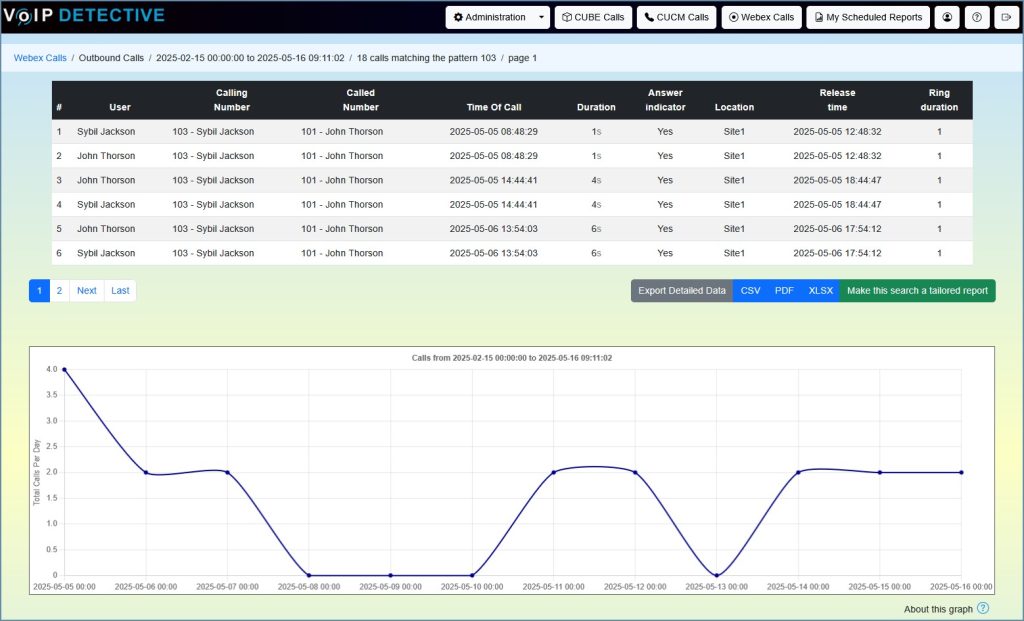
- See the outbound call from an extension or user quickly and easily. Schedule the report to be emailed to you as often as you’d like.
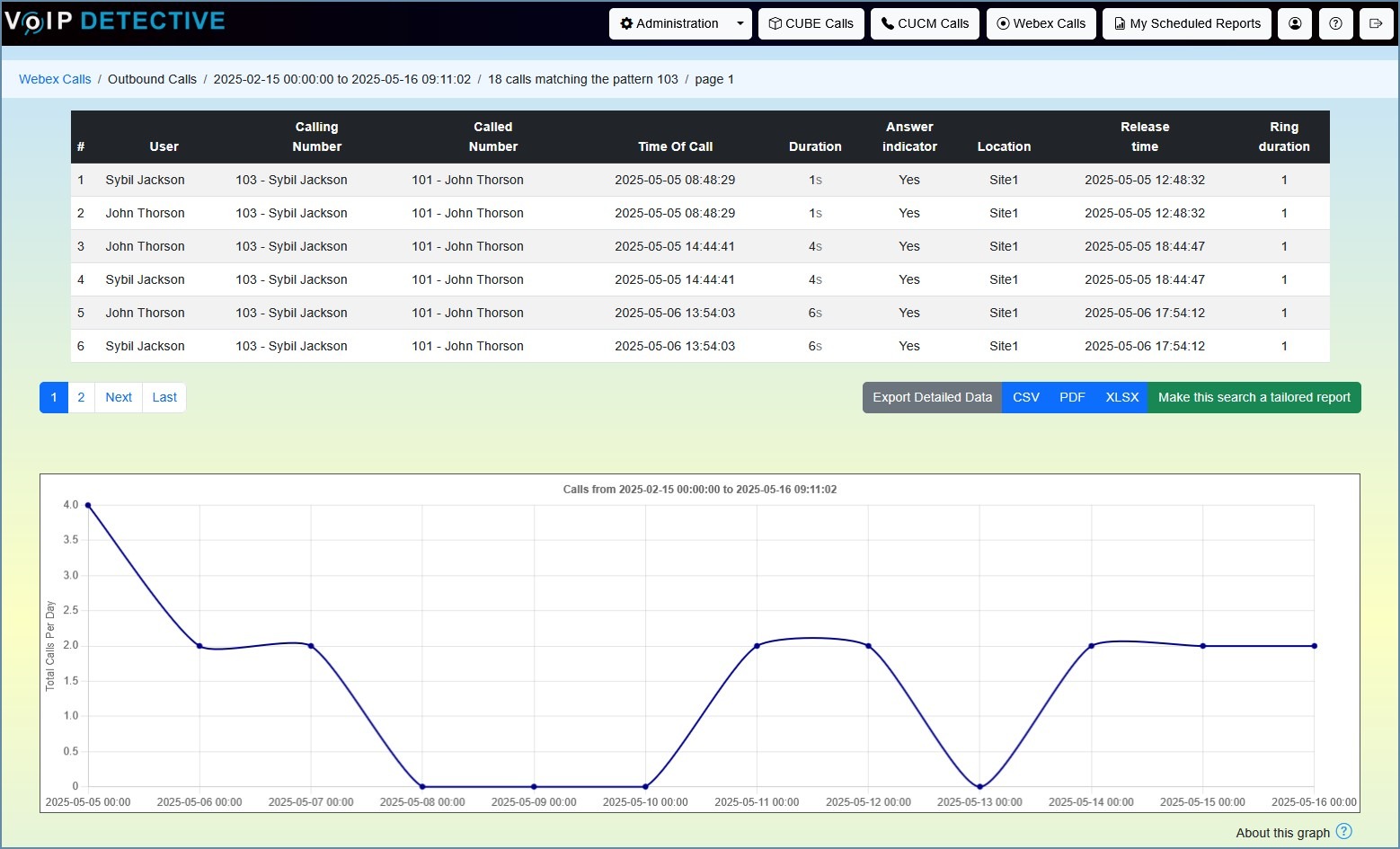
VoIP Detective Free can export this report into CSV, while VoIP Detective Pro can export to CSV, XLSX, and PDF.
Team Report
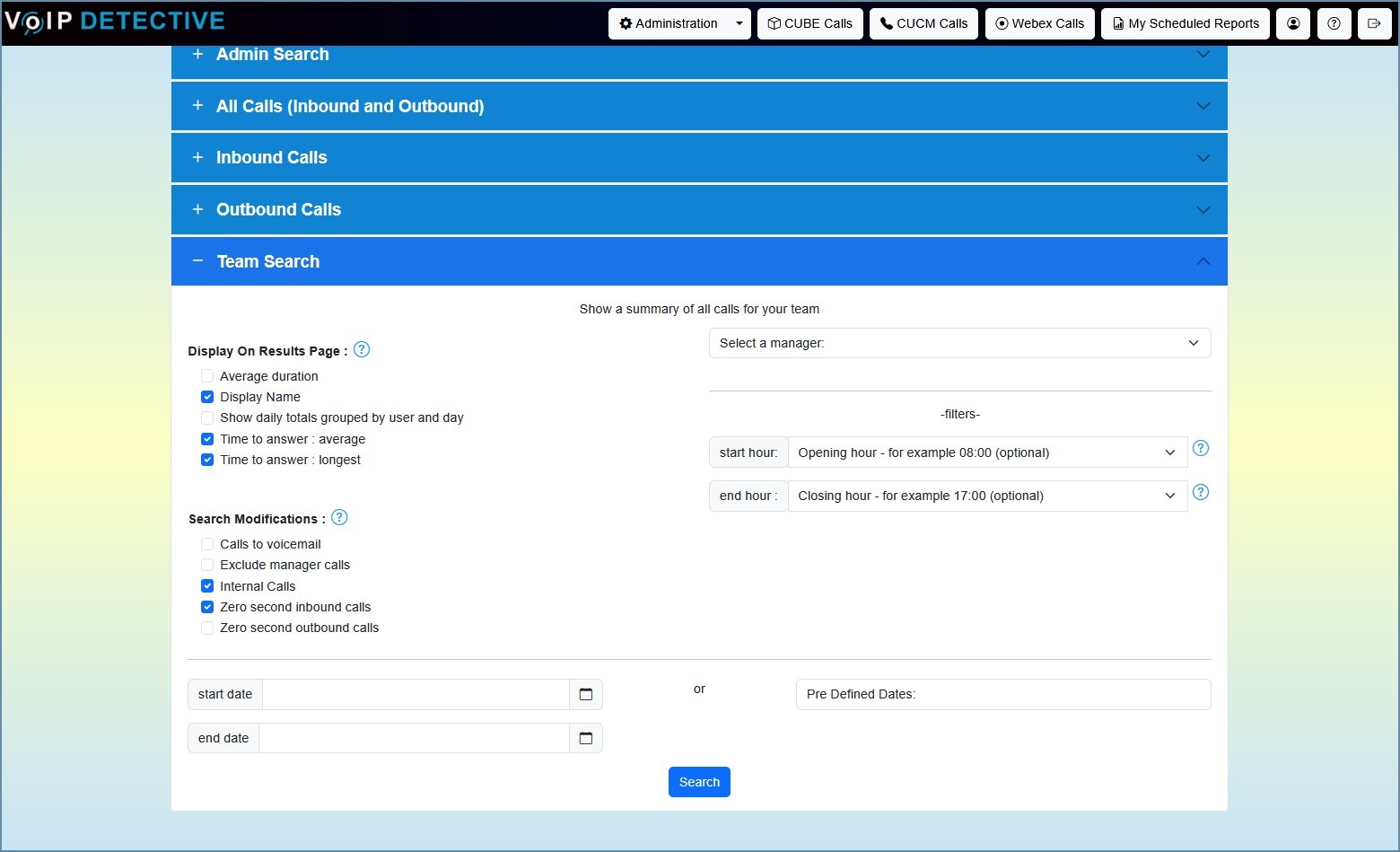
Arguably the most popular report in VoIP Detective, the team report gives a very easy to understand summary of the calls to and from users on your team. This report is designed for a manager to run, so that they have a high level view of those who report to them, along with the ability to drill down further where needed. A team is assigned by the VoIP Detective Administrator, and can include extensions, users, virtual numbers – any number that can be reported on in Webex.
Sample output from a team report:
-
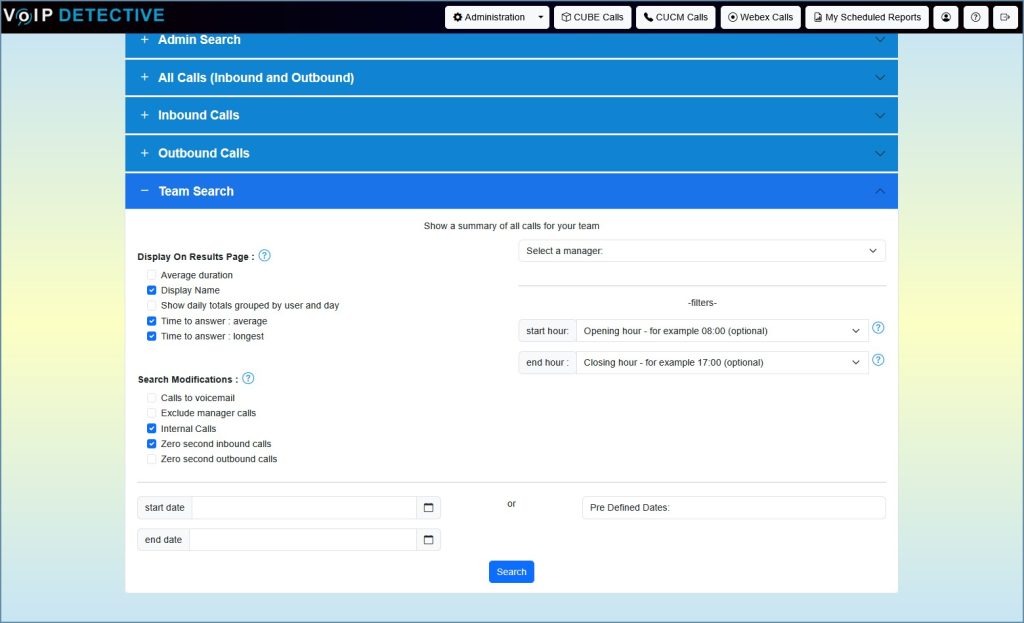
- VoIP Detective’s Team Search will allow a manager or group leader to quickly see the performance of their team. Just choose the filters and options you’d like, along with a timeframe and that’s it.
-
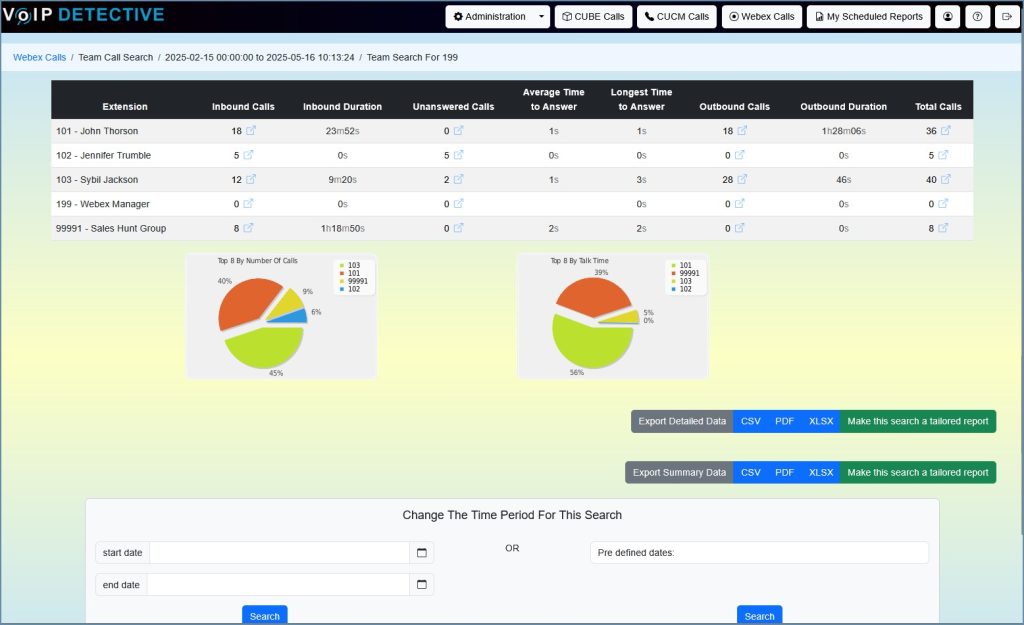
- The Team Search is easy to read, plus by clicking on any of the summary metrics in this image, the manager can drill down to individual calls.
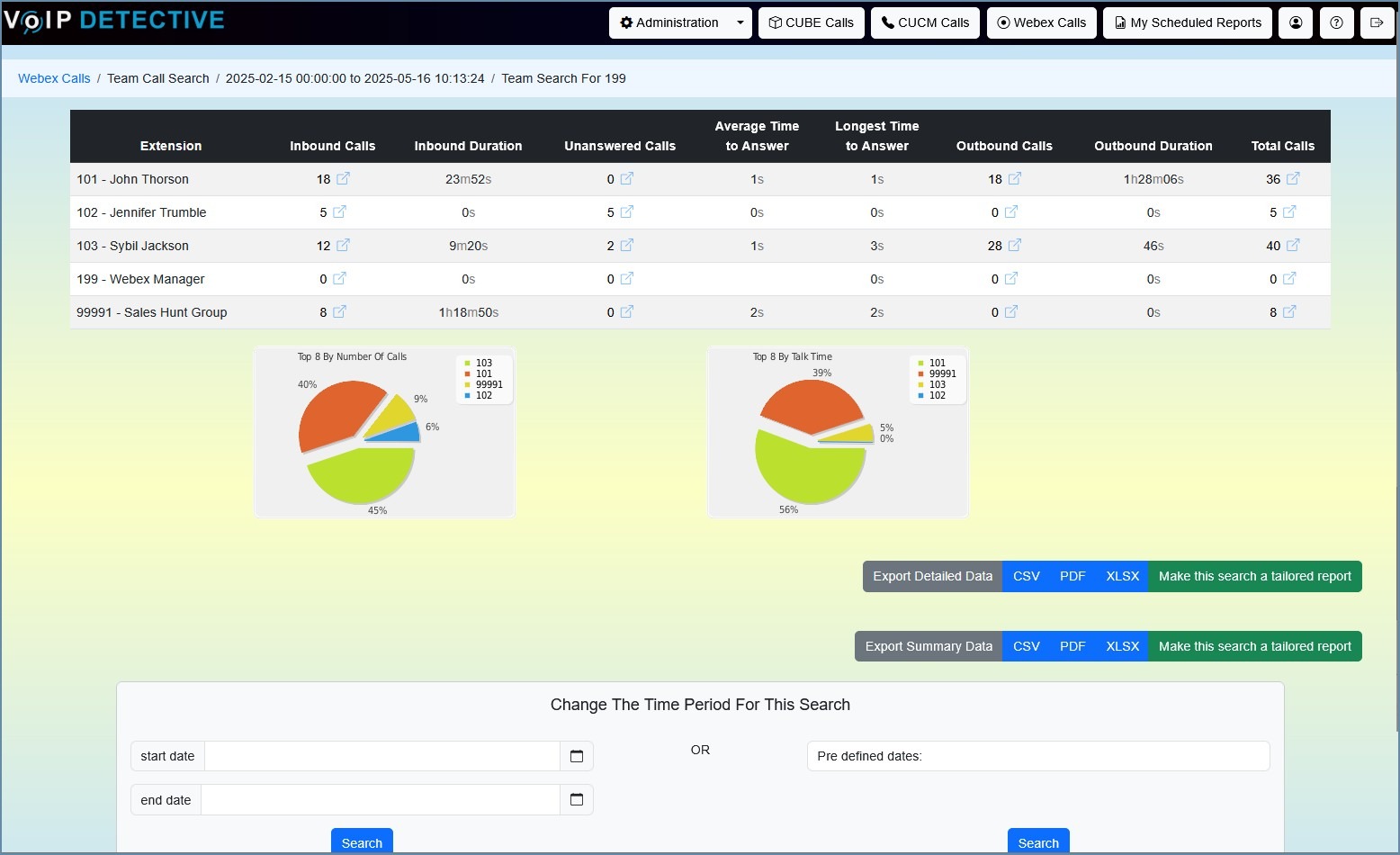
The Team Report is a bit different from our other reports: the export can contain summary information, as seen in the screenshot above, or details, meaning the individual calls. VoIP Detective Free can export this report into CSV, while VoIP Detective Pro can export to CSV, XLSX, and PDF.